The extra monitor is supposed to make a task easier. It should not require the keyboard to sit halfway off the desk. Before choosing where the screen goes, decide what it will display. A reference document checked occasionally creates different placement needs from two windows used equally throughout the day.
If one display does most of the work, start with that one in front of the main sitting position and place the secondary screen beside it. If both receive similar attention, try them close together around the center of the workspace. The arrangement should let you view the material without keeping your head turned to one side for long stretches. Adjust it to the actual task rather than forcing a perfectly symmetrical appearance.
Measure the stands, not just the screens
The diagonal display measurement tells you little about the space occupied on the desk. A wide-footed stand may extend toward the keyboard, while its rear support prevents the screen from moving close to the wall. Draw the bases on paper at full size and lay them out with the keyboard and mouse.
Include the cables. A connector that points straight backward needs room for its plug and a gentle cable turn. Do not push a monitor against a wall until the cable bends sharply or the socket carries pressure. Check that stands remain fully supported and cannot be knocked by a passing person.
A monitor arm can recover surface space, but only when the arm, display and desk are compatible. Verify the screen's mounting pattern and weight, the arm's supported range and the desk manufacturer's guidance on clamps or through-hole mounts. A hollow or fragile desktop may not be suitable. The arm also moves behind or beyond the display, so its swept area must fit the room.
Make text usable before moving closer
Different screen sizes and pixel densities can make the same document look larger on one display than the other. Adjust operating-system scaling and application zoom as needed rather than leaning forward to compensate. Keep the task you're actively reading on the screen that is easiest to view.
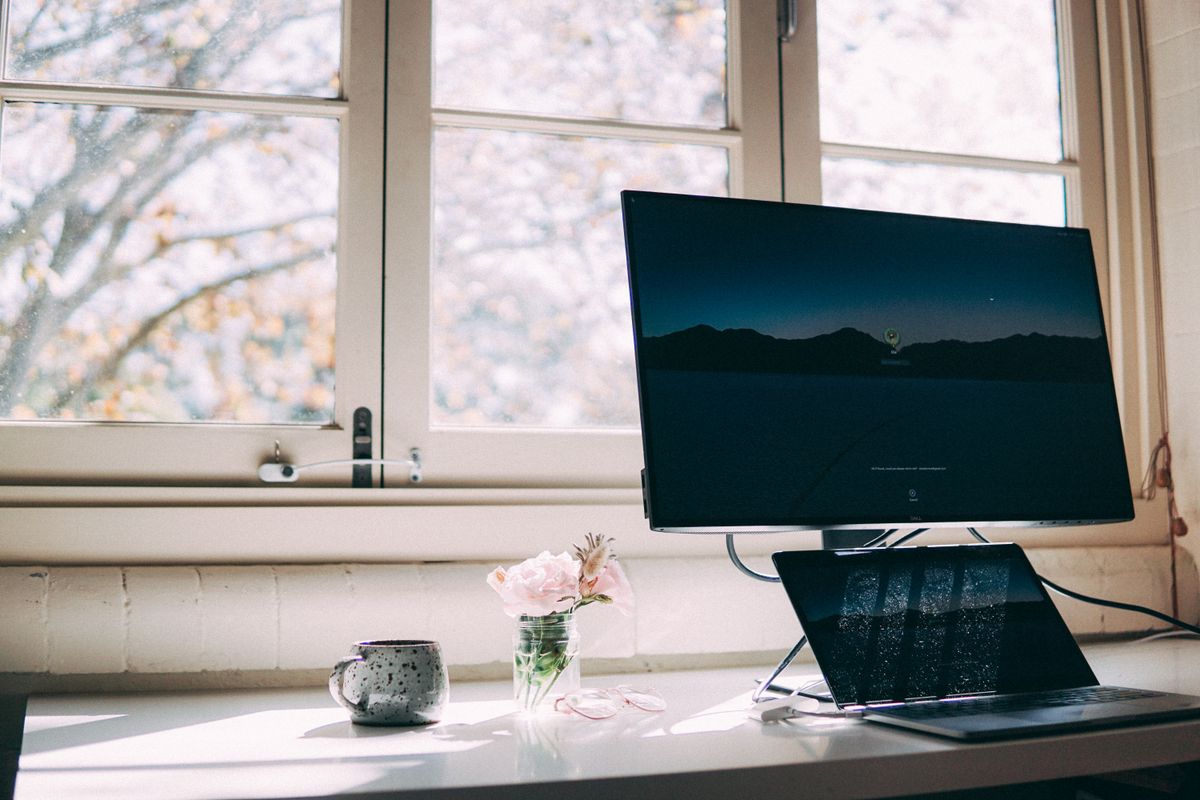
A laptop used as the second screen can work well for messages or occasional reference, but its built-in display may sit much lower. A stable stand can change that position if the computer's cooling requirements are respected. When using it raised, plan separate input devices for sustained typing.
Leave the new arrangement in place for a normal work session before fixing cables permanently. Move a window between screens, write a note and use the mouse across its usual range. The second screen has earned its space when it supports those actions without crowding them out.